
You may be an expert in Avid or Final Cut Pro, but there may have been a couple times where you’ve had to open After Effects to do one quick change. This may have been easy, but in many cases you’ve never opened After Effects before. You figure you know can work your way around in Photoshop so how hard could it be? Well, if you need to send something to the render queue and need to export something with a transparent background, it could be tough.
First you need to learn the terms After Effects uses. When you want to export something with a transparent background the correct term is having an alpha matte. If you export something with only an alpha matte, you won’t see any of your artwork or lower thirds.
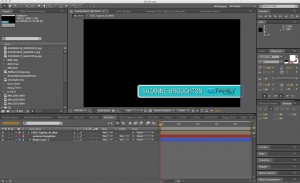
I’ve made a simple lower third (nothing fancy about it) with this composition for a fun little piece I did with OCFamily.com. As you can see I have the title and then a black background. I will add this to my render queue.
 Now you can see my default “Output module” is ProRes. This won’t help me at all when it comes to rendering something with an alpha matte + RGB. We will want to select Lossless, which is an animation codec based output module. Note: There may be another Lossless with Alpha or Lossless + Alpha setting, but I can’t remember if those were ones I made on my own or came with the program.

Lossless will most likely come up automatically unless the settings are changed on your program. Click on Lossless.

Now another screen pops up with an option to change your Video Output settings. You should see an option for Channels with RGB selected. Click on that and make it say RGB + Alpha. To the right it should say “Animation.”
Click ok. Click render. Import that into FCP or Avid (your Avid settings must be correct to catch the alpha matte, but that is another post for another day) and you should be able to lay it over the video to end up with it working correctly.
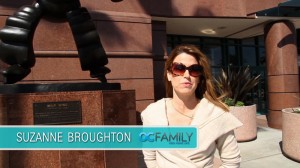
Here is how it should come out. You will notice that the third is positioned on the other side of the screen because I had switched it to the other side of the screen for a future project.